Update CDK Template
Update CDK Template
In this section, we will use the VPC and subnets we created to deploy an EC2 instance and install an Apache server on it.
- Before updating the CDK code, we will try checking the changed resources (ChangeSet) by running the command:
cdk diff
Under the hood, this command will do 2 things:
- Run
cdk synthto generate a valid CloudFormation template in thecdk.outdirectory - Compare the resources in this template with the existing resources on the deployed CloudFormation Stack
The result will be a ChangeSet between the current CDK version and the CDK version deployed on AWS. Here, we haven’t changed anything yet, so the result will be as follows:

- Add a new role to the stack by adding the following code to the
__init__()function of thecdk_workshop/cdk_workshop_stack.pyfile:
# Instance Role and SSM Managed Policy
role = iam.Role(self, "InstanceRole", assumed_by=iam.ServicePrincipal("ec2.amazonaws.com"))
role.add_managed_policy(iam.ManagedPolicy.from_aws_managed_policy_name("AmazonSSMManagedInstanceCore"))
- Add a web server security group to allow access from port 80:
# Create a security group for the EC2 instance
webserverSG = ec2.SecurityGroup(self, 'webserver-sg', vpc=vpc)

webserverSG.add_ingress_rule(
    ec2.Peer.any_ipv4(),
    ec2.Port.tcp(80),
    'allow HTTP traffic from anywhere',
)
- Initialize an EC2 instance and assign the created role as the service role:
# AMI
amzn_linux = ec2.MachineImage.latest_amazon_linux(
    generation=ec2.AmazonLinuxGeneration.AMAZON_LINUX_2,
    edition=ec2.AmazonLinuxEdition.STANDARD,
    virtualization=ec2.AmazonLinuxVirt.HVM,
    storage=ec2.AmazonLinuxStorage.GENERAL_PURPOSE
)

# Instance
instance = ec2.Instance(self, "Instance",
    instance_type=ec2.InstanceType("t3.micro"),
    machine_image=amzn_linux,
    vpc=vpc,
    role=role,
    security_group=webserverSG
)
- Add user data for the EC2 instance:
...
dirname = os.path.dirname(__file__)
...

class CdkWorkshopStack(Stack):
    def __init__(self, scope: Construct, construct_id: str, **kwargs) -> None:
        ...
        # Script in S3 as Asset
        asset = Asset(self, "Asset", path=os.path.join(dirname, "configure.sh"))

        local_path = instance.user_data.add_s3_download_command(
            bucket=asset.bucket,
            bucket_key=asset.s3_object_key
        )

        # Userdata executes script from
        instance.user_data.add_execute_file_command(
            file_path=local_path
        )
        asset.grant_read(instance.role)
- Update the contents of the file
cdk_workshop/cdk_workshop_stack.py
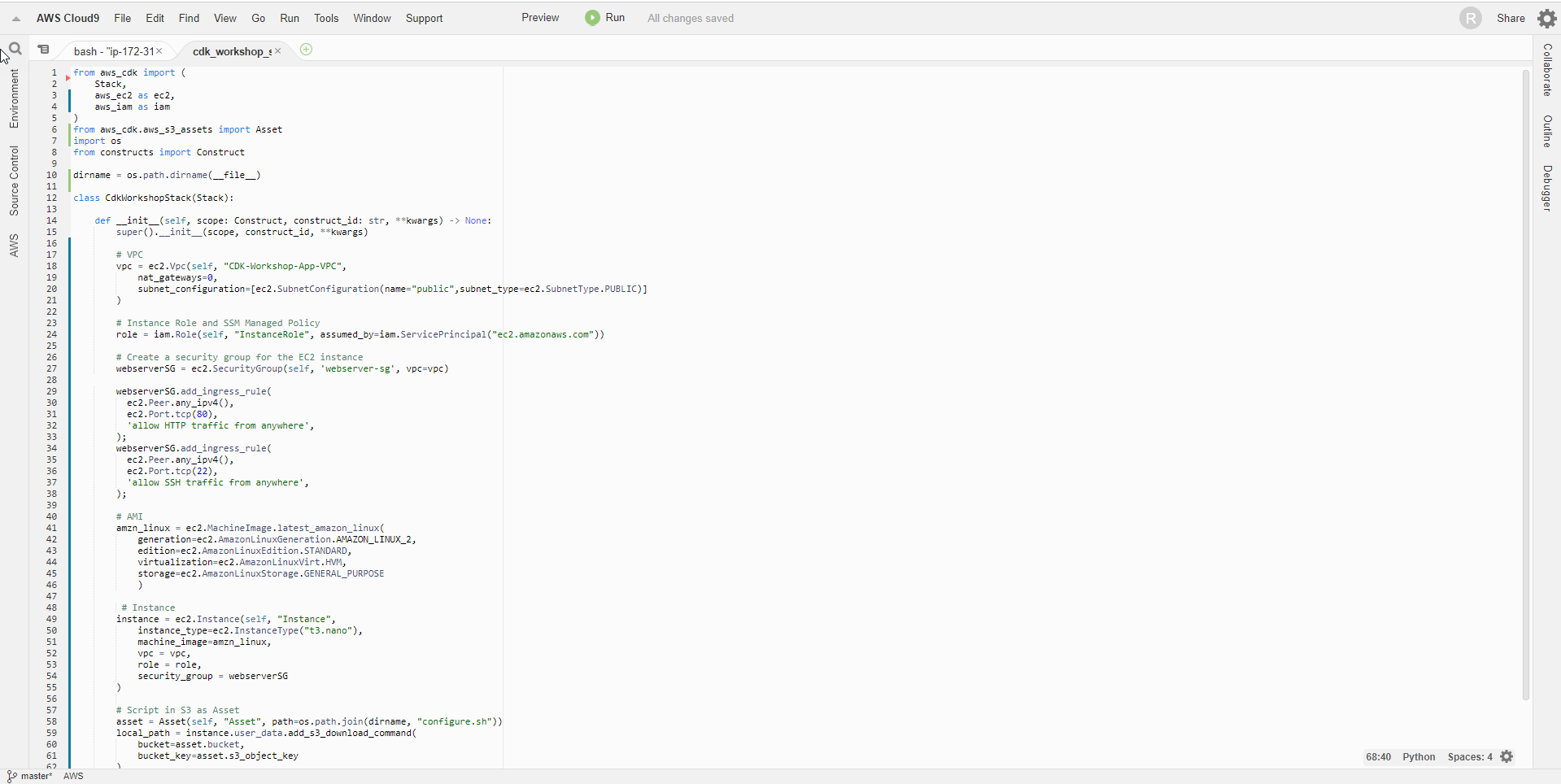
Instead of manually editing each line in the Terminal, you can copy and paste the entire code block below into the CloudShell Terminal to automatically overwrite the complete contents of the above steps into the file:
cat << 'EOF' > cdk_workshop/cdk_workshop_stack.py
from aws_cdk import (
    Stack,
    aws_ec2 as ec2,
    aws_iam as iam
)
from aws_cdk.aws_s3_assets import Asset
import os
from constructs import Construct

dirname = os.path.dirname(__file__)

class CdkWorkshopStack(Stack):

    def __init__(self, scope: Construct, construct_id: str, **kwargs) -> None:
        super().__init__(scope, construct_id, **kwargs)

        # VPC
        vpc = ec2.Vpc(self, "CDK-Workshop-App-VPC",
            nat_gateways=0,
            subnet_configuration=[ec2.SubnetConfiguration(name="public",subnet_type=ec2.SubnetType.PUBLIC)]
        )

        # Instance Role and SSM Managed Policy
        role = iam.Role(self, "InstanceRole", assumed_by=iam.ServicePrincipal("ec2.amazonaws.com"))
        role.add_managed_policy(iam.ManagedPolicy.from_aws_managed_policy_name("AmazonSSMManagedInstanceCore"))

        # Create a security group for the EC2 instance
        webserverSG = ec2.SecurityGroup(self, 'webserver-sg', vpc=vpc)

        webserverSG.add_ingress_rule(
          ec2.Peer.any_ipv4(),
          ec2.Port.tcp(80),
          'allow HTTP traffic from anywhere',
        )
        webserverSG.add_ingress_rule(
          ec2.Peer.any_ipv4(),
          ec2.Port.tcp(22),
          'allow SSH traffic from anywhere',
        )

        # AMI
        amzn_linux = ec2.MachineImage.latest_amazon_linux(
            generation=ec2.AmazonLinuxGeneration.AMAZON_LINUX_2,
            edition=ec2.AmazonLinuxEdition.STANDARD,
            virtualization=ec2.AmazonLinuxVirt.HVM,
            storage=ec2.AmazonLinuxStorage.GENERAL_PURPOSE
        )

        # Instance
        instance = ec2.Instance(self, "Instance",
            instance_type=ec2.InstanceType("t3.micro"),
            machine_image=amzn_linux,
            vpc = vpc,
            role = role,
            security_group = webserverSG
        )

        # Script in S3 as Asset
        asset = Asset(self, "Asset", path=os.path.join(dirname, "configure.sh"))
        local_path = instance.user_data.add_s3_download_command(
            bucket=asset.bucket,
            bucket_key=asset.s3_object_key
        )

        # Userdata executes script from S3
        instance.user_data.add_execute_file_command(
            file_path=local_path
        )
        asset.grant_read(instance.role)
EOF
- Create a
configure.shfile to store the initialization code for the EC2 instance. This initialization code will update the software and install the Apache server on our instance.
Note: We will intentionally create this file in the wrong location (creating it right in the root directory cdk-workshop instead of inside cdk_workshop/) to see how CDK catches errors.
Run the following code block in the Terminal:
cat << 'EOF' > configure.sh
#!/bin/bash
yum install -y httpd.x86_64
systemctl start httpd.service
systemctl enable httpd.service
echo "Hello World from $(hostname -f)" > /var/www/html/index.html
EOF

- Run the
cdk diffcommand to see the changes to the stack we just defined:
cdk diff
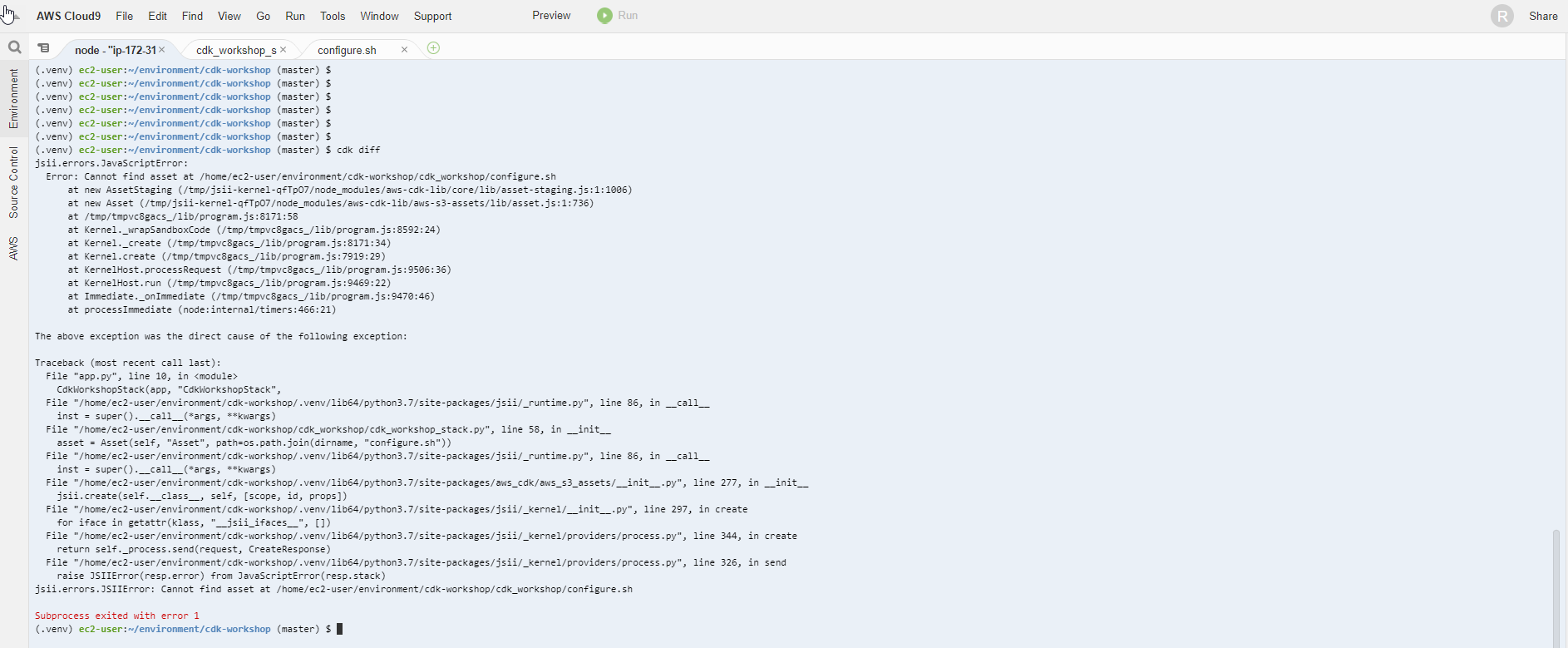
Oh no, an error occurred. Looking at the log, you can see that the asset file link is wrong. We can see that cdk provides us with extremely good error control.

- To fix it, we just need to move the
configure.shfile to the right location. Stand in the current directory (cdk-workshop) and run the following command:
mv configure.sh cdk_workshop/
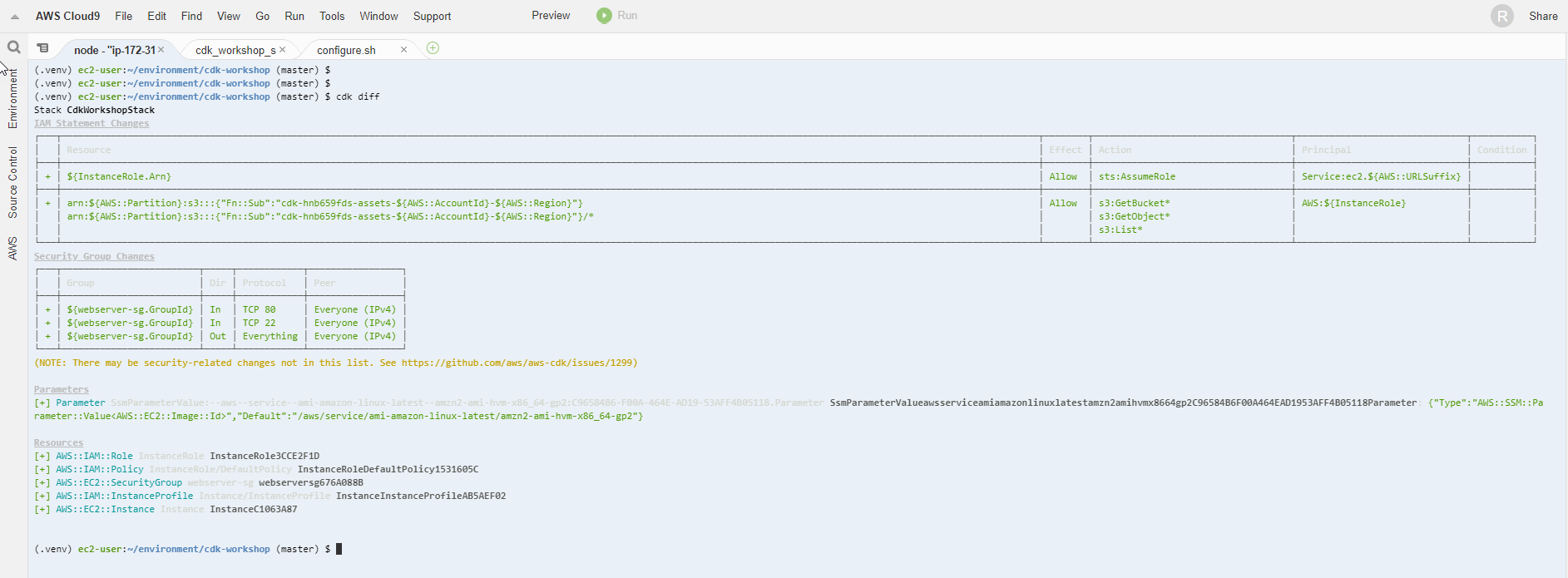
- Run the
cdk diffcommand again:
cdk diff
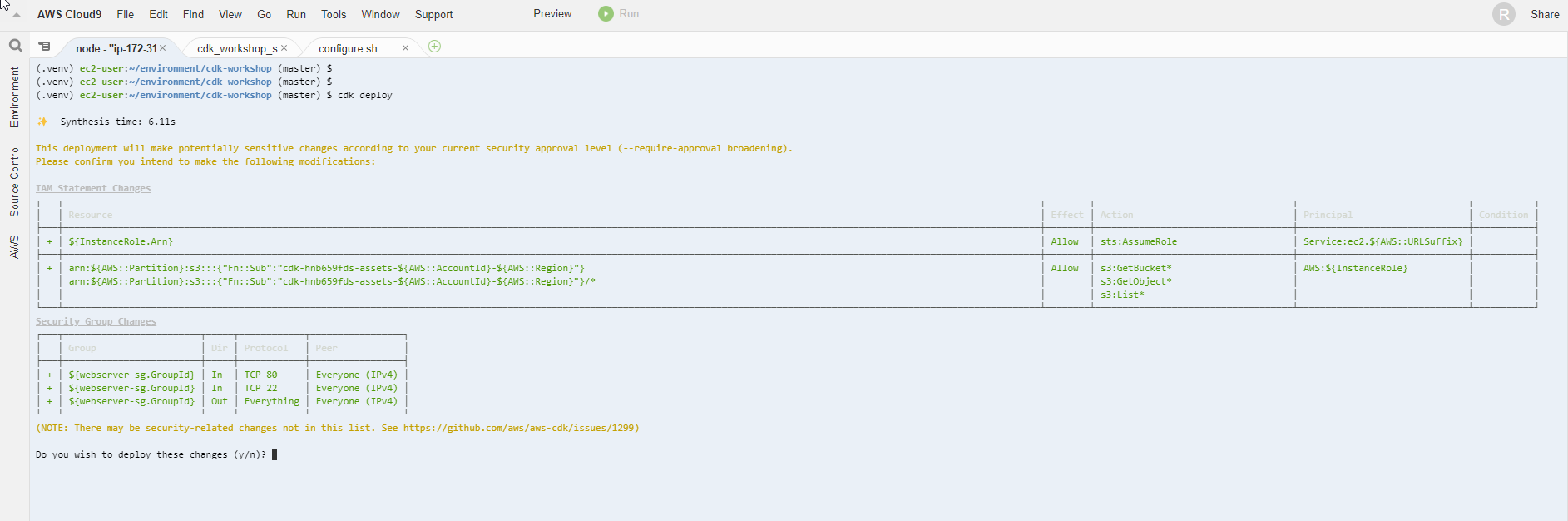
The template changes are now valid!
- Deploy to AWS:
cdk deploy
- Enter y to continue
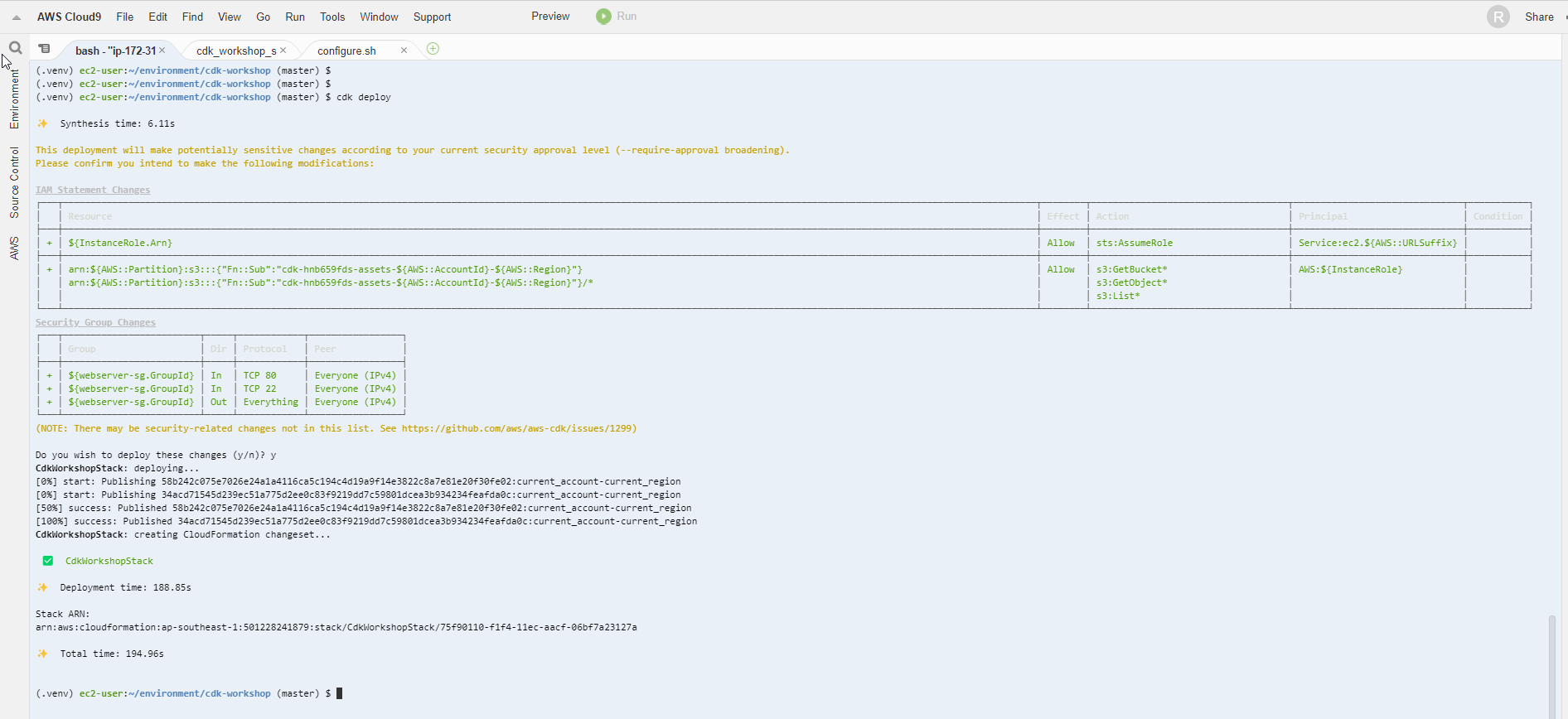
- Complete the deployment
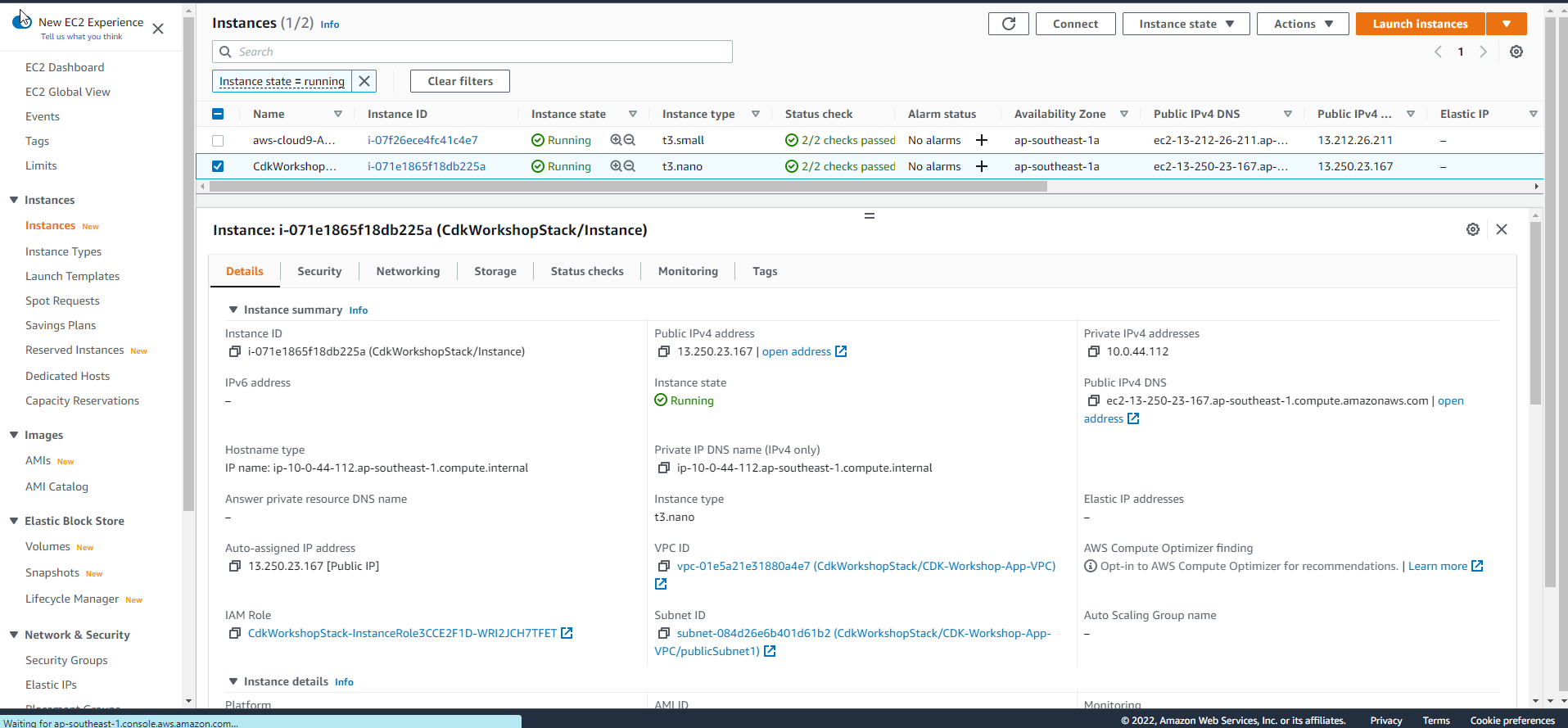
- Go to the EC2 dashboard window, get the Public IP information of the newly created EC2 instance.

- Open a new tab in the browser and paste the Public IP in. If you see a screen displaying a welcome message from Apache, the setup process was successful! (note to access http, not https)
